
Start your search by selecting the appropriate category in which you might find your product.
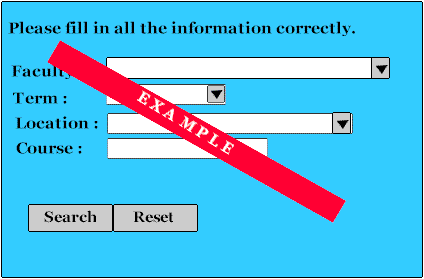
Text or course books may be searched by selecting the required Faculty, Term, Location and typing in one or more course codes separated by a comma.
General books may be searched by typing in all or part of the description, the name of the author or the ISBN number.General Merchandise items or computers may be searched by typing in all or part of the description or the UPC code.
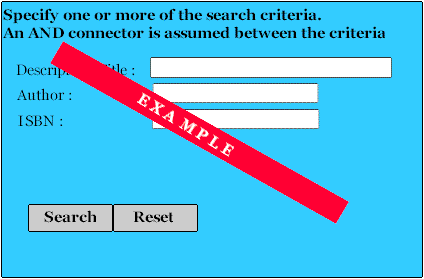
 | Press the Search button to start the search. |
| Press the Main Menu button to return to the page where the main menu is displayed. |
Item(s) may be selected by clicking the check box next to it. The selected item(s) may then be added to the cart by pressing the "Add To Cart" button. Each title is displayed as a hyperlink to a Product Detail page. Only 20 results are displayed per page. You may browse through them by the BACK and NEXT arrows at the bottom of the page.
But REMEMBER : The selections of the current page are not carried over to the next page. Only selections of the current page are added to the cart.
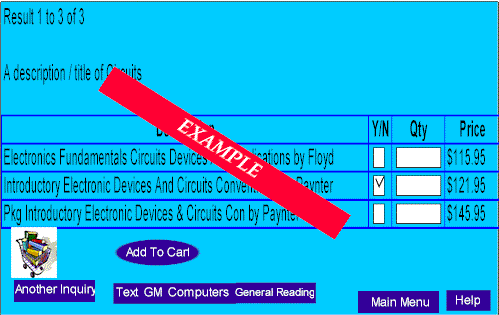
| Press the BACK or NEXT arrow to browse through the result. |
| Press the "Add To Cart" button to add the items selected on the page to the cart. |
| Press the "Another Inquiry" button to make another inquiry in the same category. |
| Use the navigation bar and go to any other category. |
| Go back to the Main Menu page. |
You may remove items by left clicking on the check mark beside the title or you may change the quantity.
But REMEMBER : You must press the MODIFY CART button to reflect the changes to the cart.

| Continue shopping by selecting a category in the Navigation Bar. |
| Remove all items from your cart by pressing the EMPTY CART button. |
| Proceed to purchase your items by pressing the CHECKOUT button. |
| Return to the Main Menu page. |